-
How is the Trial Version of
Forms571
different than the fully enabled version?
The Trial Version of
Forms571
is a fully functional version of the software.
The only difference is the Trial Version will print the word "DEMO"
on all of the forms and schedules it generates. Once you purchase your software
license, you will receive a license key. As soon as you enter your new license
key the "DEMO" spoiler will disappear.
-
Will the data I enter in the Trial Version be saved when I purchase the fully functional version?
Yes! Any data entered in the Trial Version of the software is automatically
saved.
If you decide to purchase the software, no duplicate data entry will be
necessary.
-
I installed
Forms571
Now how do I get started?
To get started you need to set up a client and a location for a client.
To set up a client, go to select File from the main menu and choose Client.
Click on the Add button and
enter the federal tax identification number (FEIN) for the client. Then click
on OK.
Next a screen will appear for you to enter client information. When you are
finished click on OK.
Highlight the client and click the Location button. At the location window
click the Add button. Enter the street address for the business property
location and click on Add.
Finally, highlight the location and click the Edit button.
-
How do I purchase the fully enabled version of the software?
Select Tools from the main menu in the application and choose Print Order
Form. Complete the order form and email it to us at support@countysoftware.com, we will respond with a payment link for you to pay with your credit card
; or you can mail it to us with your company check.
-
How long will it take to receive my valid license key to fully enable my version of the software?
If you email in your order you will receive your payment link within 24 hours after which we will email your license key as soon as we receive your payment. Similarly, if
you are paying by check through the mail, we will email your license key
as soon as we receive your payment.
-
Can I use
Forms571
on a standalone PC?
Yes, the software functions in the same manner whether or not it is connected
to a network.
-
Will
Forms571
allow me to share data files on a network?
Yes, however you must first install Forms571 and generate the data files on your shared network drive.
Then you must also install Forms571 once on each workstation
that will access the shared data files.
When installing Forms571 you will be presented with a dialog that looks like this:

For your network installation you will want to click YES to generate the data files on your network drive.
But for your workstation installations you will want to click NO and browse to
locate the folder where you installed your network copy of the program and data files.
To verify that you have completed the steps properly, launch Forms571 and select Help - About from the main menu.
Verify that the Program Path (Folder) reads C:\FORMS571 and the Data Path (Folder) reads X:\FORMS571 (where X is equal to your network drive letter).
-
Does
Forms571
work on Vista/Windows 7/10?
Yes all functions of the program work except for the Help. Microsoft is no longer supporting earlier Windows help files on these newer operating systems.
Therefore the Forms571.hlp file will not work if you are using Vista or Windows 7/10.
You can access the online version of our help file here.
You can also download the compiled html help file from our Support page and place it on your local drive.
-
The network drive that our data files are stored on has changed, how do I change the Data Path (Folder) location that is displaying in the Help - About menu item?
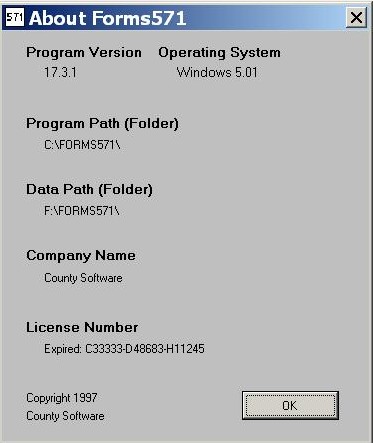
This is very easy. If your Program Path (Folder) is different from your Data Path (Folder), as in the sample dialog "About Forms571" below, then all you have to do is
to remove the file FORMS571.INI from your Program Path folder and launch Forms571.
PLEASE NOTE: In order for this to work
you must NOT have a DBF folder in your Program Path folder. If you do, simply change the name of the DBF folder to DBFSAVE and proceed with these instructions.
You will then be presented with a dialog that looks like this:
Click NO to browse and locate the new folder where your network data files are now stored. Then ensure that you are using the new location by re-entering the program
and clicking on the Help - About menu item again. The Data Path (Folder) should match your newly selected location.
-
What is the quickest way to get support?
The quickest way to get support for Forms571
is by filling out a contact form on our website. When you fill out this form please describe your question or problem as thoroughly as possible.
If you did not receive your license key please verify that the license key email did not go your junk mail. You can also lookup your license key online
by clicking here.
If you would like to pay for your purchase or renewal by credit card please place your order here and email it to us.
We will then email you a payment link for you to pay online. All orders are processed in the evening of the day that they are received.
To ensure prompt handling of your order be sure to include ALL of the information asked for.
-
Why does my license key change?
The
Forms571
program license is an annual license which must be renewed prior to each new
tax season. Upon payment of the renewal license fee you will receive a new
license key and instructions for entering it.
-
Why didn't you tell me to renew the program?
All currently licensed customers are mailed a renewal invoice near the end of
each year. The renewal invoices for 2025 were mailed on December 2nd, 2024.
The 2025 program will be made available for download on January 6th, 2025.
The 2025 renewal brings the program into compliance with changes made by the state of California each year.
Click here for info on the 2025 Program Update.
-
How do I find my registered name or license key?
For security purposes you may be asked to enter your company name exactly as it was registered with us and either the email address we have on file for your company or your license key. You can find your company name and license key by launching the Forms571 program, closing the Client List, and looking at the display.
If for some reason you cannot launch the program and you are a registered user, locate a form 571 that you printed last year and your company name will be printed on page 1 of the 571 Form. Or if you know your registered company name
but are not sure whether your license key is correct, you can retrieve your current license key by clicking
here now.
-
I have installed to my network drive and I am now trying to install to my workstation. I keep getting a dialog that asks me if I want to add, remove or reinstall. What now?
In this case you must enter and exit the Forms571 program once on the shared network drive before you can
install to a different drive on the same computer.
-
How do I backup
Forms571
data files?
Forms571
does not have a separate backup utility included in the program. Use Windows Explorer, My Computer or another utility or method suggested by your network administrator or help desk.
All of the client data files which should be backed up are located in the \forms571\dbf folder (or the \win571L\dbf folder or the folder name you entered when installing the
Forms571
application). The subfolder in this directory called \empty does not contain any of the client data files and does not need to be backed up.
Backing up the data files is an "all or nothing" task. You can not backup the data for one client only, you must backup the files which contain the data for all clients existing in the database at the time the backup is done.
You can copy these files to the backup medium of your choice such as another hard drive, a flash drive or a CD/DVD recordable drive.
-
Why are some or all of my clients missing from the Batch Printing screen?
The Batch Printing screen only includes locations that have been updated during the current tax year.
A client location is updated the first time you open the form after installing the annual update.
To open the form select a client in the Client List screen by clicking on the client, choosing the location,
and then clicking on the 571 button.
If you prefer to update all locations at once without opening them first you can run the 2025 Version 29 Update tool. The file, available January 6th, 2025, is named Vers29upd.exe. click.
here
to download this file from our website.
-
Why is my County Assessor file not reflecting the most recent Assessor information?
The 2025 annual update will include updates to the County Assessor information as published here:
https://www.boe.ca.gov/proptaxes/countycontacts.htm as of January 6th, 2025.
As of 2019 the BOE no longer reports the assessors full contact information on their website, therefore we highly recommend that you verify
ALL the assessor information for your respective counties BEFORE submitting your forms.
Also we do not automatically install the updated Assessor file in order to protect any customizations you may have made to it.
To overwrite your current County Assessor file with the one current to the date above follow these easy steps:
- Click Help - About on the tool bar in the application.
- Note the Data Path.
- Close the application and make sure no one else has the application open.
- Delete these two files from the Data Path: County.dbf and County.cdx.
- Enter the application again. The County database files will be restored from the information stored within the application.
-
Why am I not able to print prior year forms for tax years earlier than 2009?
The 571 forms changed significantly between the 2009 and the 2010 version (2008 and 2009 tax years). It is because of these changes that we
no longer offer the capability of printing prior year forms earlier than the 2009 tax year from your current program.
We recommend that you keep full backups of your data and the corresponding
Forms571 program for each year.
NOTE: The 2010, 2011 and 2012 version of the program did not allow prior year printing of any forms regardless of the year. We decided to add this
feature back in for the 2013 version while limiting the look back period to no earlier than the tax year 2009.
-
How can I print to a PDF file?
In order to print to a PDF file you will have to install PDF software and set the PDF software driver as your default printer.
One product that is very affordable and easy to use is PDF995. We use *PDF995 in our office.
Please refer to the PDF995 software website
(or the website for the PDF software of your choice) for instructions on how to print multiple documents to a single PDF file.
This is necessary because each page of the 571 form will print as a separate document to your printer or PDF driver.
* We do not sell or support PDF995 software or any other PDF software.
-
I just installed the annual update and when I click on my shortcut I am not able to access the version I just installed. Why?
When installing the annual update most customers will accept the default location which places the updated program on the local drive in the C:\Forms571 folder.
However, it is also common for most customers to share their data files and locate them on a network drive. Let's call that network drive F: for illustration purposes.
Therefore it is possible that your shortcut to the
Forms571
program is pointing to a different drive letter and or folder location than the default one of C:\Forms571.
To check this, right-click on the menu item or shortcut that you use to launch the
Forms571
program and look at the properties.
If the TARGET does not point to the C:\Forms571
folder then you will have to reinstall the update and select the TARGET folder as the location for the newly installed program.
-
How can I change my current setup of Forms571 to share data files on a network drive?
These instructions assume that you already have a working copy of Forms571 loaded on your system.
If this is not the case then please see Question 7 above
First locate the folder where the data files you want to share currently reside. For this example we will assume that folder is on your local C: drive.
The folder name would be C:\Forms571.
Next copy this entire folder to the shared network drive. Let's assume the network drive letter is F, therefore copy all of the files residing in the
C:\Forms571 folder to the F: drive. After the copy you should be able to locate the folder F:\Forms571 and the subfolder F:\Forms571\Dbf.
Once you are certain that your files have copied sucessfully you must now remove the Dbf subfolder from beneath your local parent folder C:\Forms571.
This ensures that you do not have multiple copies of the data files residing on your network. Having multiple
copies of the data files may cause confusion when you are doing future upgrades. Simply remove the subfolder C:\Forms571\Dbf leaving the parent folder
C:\Forms571
The next step is to change the TARGET properties of your menu item or shortcut. Locate the menu item or shortcut that you launch Forms571
from and right-click on properties. Your shortcut TARGET must point to C:\Forms571, like this:

If necessary, change the target and launch the
Forms571 program from this shortcut.
If you do not see the dialog below then you have not removed the DBF subfolder from the C:\Forms571 parent folder. You should be presented with this dialog:
You must answer NO to this dialog and browse to locate the F:\Forms571 folder where you copied your data files. The dialog should look like this when you have located your files:

Now click SELECT and Forms571 will launch. To verify that you have completed the steps properly select Help - About from the main menu and
verify that the Program Path (Folder) reads C:\FORMS571 and the Data Path (Folder) reads F:\FORMS571.
-
I just received an error message. What should I do?
The first thing to do when you receive an error message is to validate your data files.
Launch the Forms571 program.
From the Tools menu, select and click Validate Data Files.
If that does not correct your problem, try rebooting your computer.
If that does not work then please contact us to report the error. When reporting errors it is very helpful if you can include screen shots and a thorough description of what you were attempting to do when you received the error.
-
We changed our company name, requested and received a new license key and updated our name and license key on the License Information form from the Help menu. However, our old name is still printing on the forms. What should I do?
Select Tax Preparers from the Tools menu. Change your company name here also.